VGrab
VGrabTurn a split stream into one file
Plenty of sites don't send a video as one file — they cut it into hundreds of small parts. This collects every part and merges them into a single MP4 you can just play.
Install to ChromeBrave, Arc and other Chromium browsers work too
Add the extension
One click, no setup.
Play your video
It lists what it finds, the likely main video first.
Click save
This screen shows progress until it's done.
SAFE TO CLOSEThe download runs in the extension, not on this page. Close this tab, lose this tab, take the whole site down — it still finishes.
How this page works
This page only shows progress
The download runs in the extension. Close this page whenever you like and come back later.
No URLs to find, no switches
Open the video page, click the icon. The extension finds the videos, ranks them and picks the quality.
Three kinds of video, one entry
Segmented streams get joined into one file; plain files download as they are; players that hide the address get recorded.
Frequently asked questions
What are m3u8 and mpd? Why is the video in pieces?
Many sites don't store a video as one file. They cut it into segments a few seconds long and use a playlist (m3u8 or mpd) to tell the player the order. VGrab follows that playlist, downloads every segment and joins them in order into one file. AES-128 encrypted segments work too: the key sits where the playlist points, and decrypting it is part of normal playback.
Do I have to find the video URL or turn something on?
You do not. VGrab starts working the moment it is installed. Open the video page, click the icon, and everything downloadable on that page is listed with the most likely main video first. The quality is already chosen (480p by default, the closest option if there's no 480p, and the popup shows the one actually used — click to change it). Other tools make you enable content capture, filter by size, block domains or play a snippet to spot the real video. VGrab decides all of that itself; there are no switches.
Can I download several videos at the same time?
Yes, VGrab writes segments straight to disk (the browser's private file area for extensions), not into a tab's memory, so downloading several at once won't crash a tab. In Settings, "Videos to download at once" defaults to 1 — one at a time is the most reliable — and goes up to 5. When the slots are full, new tasks queue and start automatically as earlier ones finish. Too many at once on the same site invites rate limiting; raise it for slow sites.
If I close this page, does the download stop?
No — a VGrab download runs inside the extension; this page only shows progress. Close the page, lose the page, even have the video site go down — it still finishes. To see progress again, click the extension icon or open this page again.
If the network drops or I close the browser, do I lose what's downloaded?
No. VGrab stores every finished segment locally. Drop out at 87% and it resumes from 87%, never from the start. If a site throttles you for too long (ten minutes with no progress), the extension stops and tells you; wait a bit, click Resume, and it picks up from the segment it stopped at.
Why is the download slow?
A VGrab download is only as fast as the bandwidth the video site gives you: if it stutters when you play it, it won't download fast either. VGrab fetches each video in 3 parts at once by default ("Parts per video to fetch at once" in Settings; higher isn't necessarily faster and gets you rate-limited sooner, so leave it). When a site rate-limits, the extension slows down to a single connection instead of retrying until the site's allowance is gone. Avoid playing the video while it downloads.
Where do files go, and in what format?
In your browser's download folder, in a subfolder named after the site, with the video title as the file name. Segmented streams are joined into one .mp4 (container only, no re-encoding; in the rare case that fails, you get a .ts and the popup says why); plain files keep their own format; recordings are saved as .mp4. Desktop and phone players play them. When it's done, this page and the popup both have an Open folder button.
Why does my file have video but no sound, or sound but no video?
Some sites load video and audio as two separate tracks. When VGrab finds both, it merges them into one file. If you still end up with only one, use Record — it captures exactly what the player is playing, both tracks included.
Why doesn't it find any video on this page?
When VGrab finds no video on a page, check these first: a page opened before the extension was installed needs a reload; some sites only fetch the video once you press play, so press play and then click the icon; the popup has a Refresh and look again button — click it and wait a few seconds; if the video uses DRM (Widevine and the like), VGrab tells you plainly it can't be downloaded and won't try to get around it. None of those? Use Record.
What is Record, and when do I use it?
Some players never show a video address, and live streams have no complete file to download. Record saves the data the player is actually playing, as a normal .mp4. Keep that page open and playing while it records; recording takes as long as the video does.
Can it download DRM-protected video?
No — VGrab does not download DRM-protected video. Widevine, FairPlay and PlayReady are protection set by the rights holders. When VGrab recognises one it says so — "this video is DRM-protected and can't be downloaded" — and stops. We don't build anything that bypasses protection.
Does VGrab collect what I download?
No — VGrab never learns what you download. The whole download happens inside your browser, and this page only receives a few numbers and the video title. No sign-up, no account, nothing of yours for us to store. The scripts aren't obfuscated — open the developer tools and check for yourself. Read the privacy policy →
Which browsers are supported?
Chrome, Edge, Brave, Arc and other Chromium-based desktop browsers. Mobile browsers can't install extensions.
Something went wrong. What now?
When VGrab goes wrong, reload the video page first and make sure only one version of the extension is enabled — that fixes most of it. If not, click Copy feedback in the extension and paste it on the feedback page. It contains the extension version, browser version, the video page's address (query string removed — tokens usually live there), the host and path tail of each address found, and the error; no cookies, no full tokenised addresses. Read it before you send it. Go to feedback →
The disk is nearly full. What now?
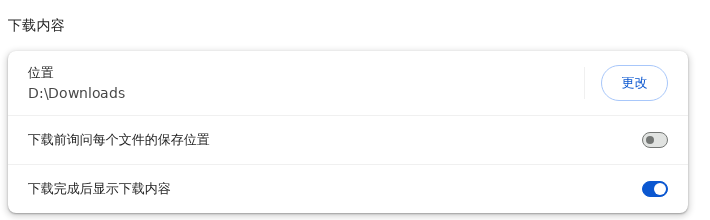
VGrab stops on its own before the disk fills up, and keeps what it already downloaded — you will not lose the finished part. To make room: delete what you no longer need, move finished videos to another drive, or point the browser itself at a drive with more space. That last one is the durable fix: open Settings, go to Downloads, and next to Location press Change. On Windows this usually reads C:\Users\